Blog · · 6min read
Split shifts, holidays and bank holidays: keep your online calendar from accepting impossible appointments
A booking at three in the afternoon when you close from two to five, or on 15 August for someone who's at the beach. How to set up shifts, per-professional hours and closures, and how to tell clients about a time change.
A booking comes in for Tuesday at half past three. You close from two to five. Or one comes in for 15 August, with the professional who’d do it 400 kilometres away. Now someone has to call the client, explain, find another time, and what the client takes away is that your booking page can’t be trusted.
An online calendar is only reliable if it knows what you know: when you’re actually open, who works which day and which days nobody is in. All of that is set up once and then maintained. Here’s how, and the mistakes we see over and over.
Split shifts: two blocks, not one long day
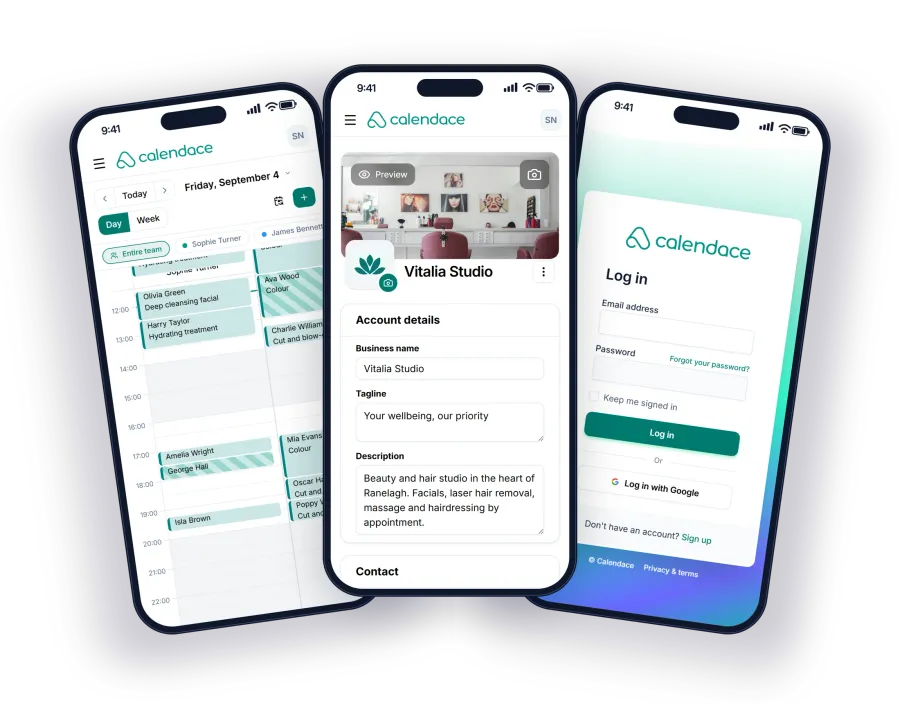
Plenty of businesses enter “9:30 to 20:00” because that’s what the sign on the door says. And the calendar, obediently, offers 14:30. A split shift means telling the calendar that Tuesday is two blocks, 9:30 to 14:00 and 16:30 to 20:00, and that nothing exists in between.
Each day of the week has its own blocks. Saturday can be mornings only. Monday can be closed. In Calendace split shifts are on the Standard and Premium plans; on the Free plan, one block per day.
There’s a detail that gets overlooked: the grid. The calendar offers times every 15, 30 or 60 minutes, and the grid should fit the length of your services. With a 30-minute cut and a 30-minute grid, everything lines up. With a 45-minute service and a 30-minute grid, an appointment at 9:30 ends at 10:15 and the next time offered is 10:30: a dead quarter of an hour every time. The simple rule: if you have 45-minute services, use a 15-minute grid.
One schedule per professional
The business hours are the front door. Each professional’s hours are their chair. If Marta only works mornings and Jorge doesn’t come in on Mondays, each has their own schedule, and the calendar only offers the times of whoever will actually be there.
This is what makes the “first available” option work. A client with no preference asks for a time without choosing anyone, and the calendar assigns it to whoever has a gap then, according to each person’s hours. Without individual schedules, “first available” ends up giving Marta an appointment at six in the evening.
The Free plan allows one professional; Standard, three; Premium, no limit. If you have five people and only three take online bookings, set up those three and the rest stay in the calendar by hand. The details of each plan are on the pricing page.
Holidays, bank holidays and one-off closures
Holidays are entered as a date range, for the whole business or for one professional. During those days the calendar offers nothing from that person, and everyone else carries on as normal.
The same applies to things that aren’t holidays but close you just the same: the local bank holiday that doesn’t show in the phone’s calendar, the long weekend, the training morning, the afternoon the air-conditioning engineer is coming. Any day or hours when someone isn’t seeing clients is a closure, and it goes in before anyone can book it.
Here’s a concrete rule that avoids almost every scare. If you accept bookings up to 60 days ahead, closures have to be entered with more than 60 days to spare. In practice: national and regional bank holidays are marked by Calendace itself if automatic public holidays are switched on; enter your town’s local ones the day they are published. And when you decide the team’s holidays, enter them before you tell anyone.
The mistakes that come up most
Closing without checking who already had an appointment. You mark the 10th to the 20th as holidays and forget that Ana booked the 12th three weeks ago. Before entering a closure, open the calendar for those days. If there are appointments, they need moving or cancelling, and the client needs telling. Existing appointments don’t move on their own.
Forgetting the local bank holiday. National and regional ones are marked on their own by automatic public holidays, but your town’s are yours to add. They’re the two days a year when the most impossible bookings come in.
Changing summer hours but not the calendar. The sign on the door has said “July and August, continuous hours” for years. The calendar still offers five in the afternoon. Every change of season is a schedule review.
Minimum notice set to zero. With no minimum notice, someone can book at 10:05 for 10:15, while you’re with another client and not looking at your phone. A minimum notice of one or two hours prevents the booking nobody has seen.
A grid that doesn’t fit the services. The dead quarter of an hour from earlier, multiplied by every appointment of the day.
How to notify a time change
When you move an appointment from the dashboard, the client gets the automatic time-change notice with the new date, through whichever channels you have on: email, SMS, WhatsApp or a notification on their phone. From that same notice they can cancel if the new time doesn’t suit, within the cancellation window you’ve set.
The notice carries the facts; the context comes from you. A short message before moving the appointment stops the change from looking like a mistake:
Hi Ana. We’re closed on Thursday the 12th for the local bank holiday. I’ve moved your appointment to Friday the 13th at the same time. You’ll get the notice with the details now; if it doesn’t suit, cancel from the link and pick another time, or message me and I’ll find you a slot.
If the closure forces you to cancel appointments that won’t fit another day, the cancellation notice goes out just as automatically. And if you have the waitlist switched on, those clients can join it for the first slot that opens up the following week, instead of being left without a date.
Checklist before a closure
- The calendar for those days has been checked: no appointment is left unmoved or uncancelled.
- Every affected client has a message from you before the automatic notice.
- The closure is entered for the business or for the right professional, not both unless it applies.
- Automatic public holidays are switched on and your local ones are added.
- The maximum booking notice doesn’t exceed how far ahead you enter closures.
- Summer and winter hours have a review date in your own calendar.
It’s half an hour a year and five minutes per closure. In return, the booking page only offers times that exist, and clients stop getting calls to undo what they’ve just booked. If you want to see everything that can be configured, it’s on the features page.